 how-to
How to Cancel Audio Subscriptions: Step-by-Step Guide
Table of Contents
- Before You Cancel: What You Need to Know
- How to Cancel Audio Subscriptions Through Account Settings
- Canceling Through Mobile App Stores
- What Happens to Your Content After Cancellation
- How to Manage Digital Subscriptions and Avoid Unwanted Charges
- Is a Monthly Subscription Worth It? Evaluating Your Audio Services
- Troubleshooting Common Cancellation Issues
- Conclusion: Taking Control of Your Audio Subscriptions
- Frequently Asked Questions
Last Updated: September 13, 2026
Before You Cancel: What You Need to Know
Canceling an audio subscription takes about two minutes once you know where to look, but the path differs depending on how you signed up. If you subscribed through the web, you'll cancel in your account dashboard. If you signed up inside an app, the app store controls the recurring billing, not the service itself. That distinction trips up more people than anything else.
This guide from hush walks through every cancellation path: web accounts, iOS, Android, and the troubleshooting steps for when a cancel button refuses to cooperate. Below, we'll show you exactly how to cancel audio subscriptions without losing access to content you've already paid for, and how to confirm the cancellation actually went through.
The most common mistake is assuming that deleting an app cancels a subscription. It doesn't. The membership stays active, the charges keep coming, and you find out three months later when you're reviewing your billing history. Knowing which system holds your payment method is the whole game.
How to Cancel Audio Subscriptions Through Account Settings
The fastest way to cancel audio subscriptions is through the account dashboard on the provider's website. This works for any membership you purchased directly with a credit card or payment method on the service's own checkout page.
Here's the general flow, though exact labels vary by platform.
Step 1: Log In and Locate Your Profile Settings
Sign in with your account credentials, then look for your user profile. On most platforms this lives behind an avatar icon in the top-right corner of the navigation menu, sometimes labeled "Account," "Profile," or your display name. On mobile browsers, the menu may be collapsed behind a hamburger icon.
If you can't remember your password, use the reset flow before you start. Trying to cancel while logged into a half-broken session wastes time.
Step 2: Find the Subscription Management Section
Look for a tab called "Subscription," "Membership," "Billing," or "Plan." This is where your membership tier, billing cycle, payment method, and auto-renew status live. Some services bury it one level deeper under "Account Settings" then "Billing History."
Step 3: Confirm Your Cancellation
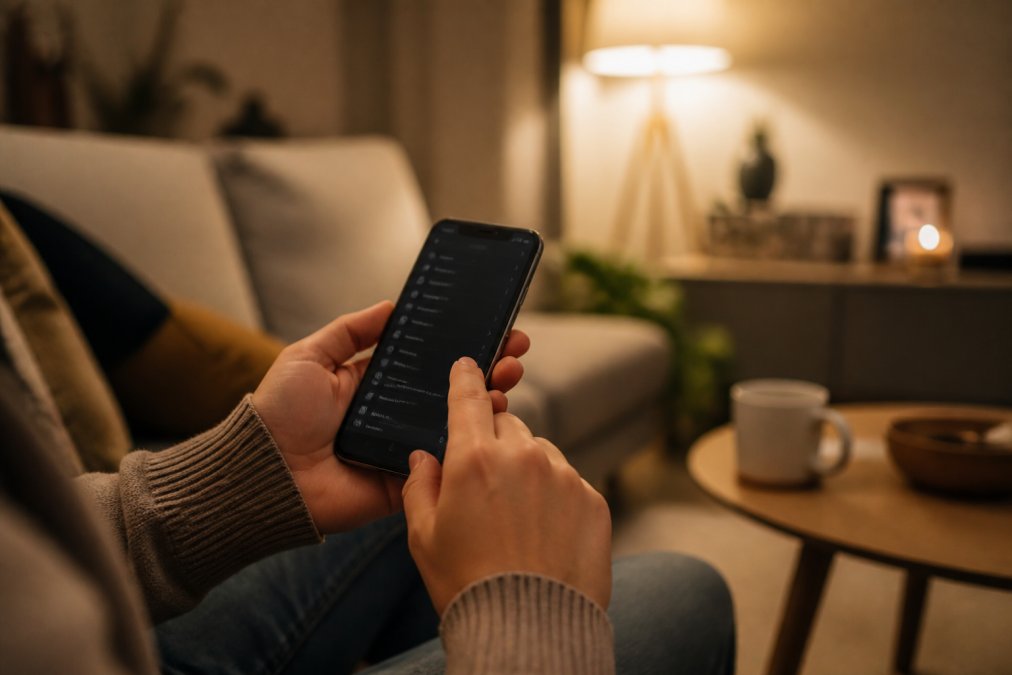
Click the cancel or "turn off auto-renew" option. Most services will show you a retention offer or a confirmation screen listing what you'll lose. Read it, then confirm. You should receive a cancellation confirmation email within a few minutes. If you don't get one, treat the cancellation as incomplete and try again or contact support.
Canceling Through Mobile App Stores
If you subscribed inside an app, the app store owns the recurring billing, and the service's own website cannot cancel it for you. This is the single biggest source of confusion in subscription management, so it's worth repeating: the platform that processed your in-app purchase is the only place that can stop it.
iOS: Managing Subscriptions Through Apple
On an iPhone or iPad, open Settings, tap your name at the top, then tap Subscriptions. Find the audio service in the list, tap it, and select Cancel Subscription. If you don't see a cancel option, the subscription may already be expired or canceled. You can also reach the same screen through the App Store app by tapping your profile photo, then Subscriptions.
Android: Managing Subscriptions Through Google Play
On Android, open the Google Play Store, tap your profile icon, then Payments and subscriptions, then Subscriptions. Select the service and tap Cancel subscription. Google Play will confirm the date your access ends. Third-party billing through a carrier or another payment processor follows its own path, so check your payment method if the service doesn't appear here.
| Platform | Where to Cancel | What Controls Billing |
|---|---|---|
| Web account | Account dashboard, then Billing or Subscription | The service's own payment processor |
| iOS | Settings, then your name, then Subscriptions | Apple's App Store billing |
| Android | Play Store, then Payments and subscriptions | Google Play billing |
| Carrier or third-party | Your carrier account or payment provider | The third-party processor |
What Happens to Your Content After Cancellation
Access typically continues until the end of your current billing cycle, then stops (the FTC). This is standard across subscription services, and it means you don't lose anything the moment you click cancel. You've paid through a date, and you keep listening until that date arrives.
The trickier question is content retention, and it splits into three categories that most guides lump together. Knowing which category your content falls into is the difference between a clean exit and a nasty surprise.
Subscription-only content. Titles you accessed through the membership, the catalog, the streaming library, the rotating selection, lock when the membership lapses. You didn't buy these; you rented access. When the billing cycle ends, they're gone from your library, your queue, and your downloads.
Separately purchased content. If you bought a title outright (a one-time purchase, an audiobook you paid for individually, a download you own), that purchase usually survives cancellation. The subscription and the purchase are separate transactions. Check the provider's terms, because some services tie purchased content to an active account and revoke access if the account is deleted, but not if the subscription is merely canceled.
Your own data. Listening history, saved lists, ratings, and preferences are account data, not content. They usually persist as long as the account exists, even after the subscription ends. This matters if you plan to resubscribe later: canceling preserves your history, deleting the account wipes it.
Before your cycle ends, do a quick export. Screenshot your queue, note the titles you care about, and check whether any of them are available for individual purchase. If a title is subscription-only and you're not ready to lose it, that's a reason to delay cancellation by one cycle, not a reason to stay subscribed indefinitely.
Canceling vs. Deleting Your Account
These are two different actions, and confusing them causes permanent data loss.
Canceling stops the recurring billing. Your account stays open, your credentials work, your history and saved lists remain, and you can resubscribe later without starting over. This is the reversible option.
Deleting your account removes your profile, credentials, listening history, saved content, and any account-linked purchases (the FTC). It's usually irreversible, and some services require you to cancel the subscription first before they'll process a deletion request. If you might come back, cancel only. If you want your data gone, request deletion separately, and read the provider's data-retention policy first, because some services keep certain records for a period after deletion for legal or accounting reasons.
How to Manage Digital Subscriptions and Avoid Unwanted Charges
Managing digital subscriptions comes down to one habit: knowing every recurring charge attached to your payment method. Most people can't list their subscriptions from memory, which is exactly how unwanted charges survive for months.
Start with a billing audit. Pull up your credit card and bank statements for the last three months and highlight every recurring charge. Cross-reference against your app store subscription lists on both iOS and Android, since in-app purchases won't always show a recognizable merchant name on your statement.
Then set a review cadence:
- List every active subscription and its renewal date
- Note which ones you've actually used in the last 30 days
- Cancel anything you haven't opened in two billing cycles
- Turn off auto-renew on services you're unsure about, so they expire instead of charging
- Recheck your app store subscription lists every quarter
The services that survive this audit are the ones earning their place. Everything else is a leak.
The Three Cancellation Paths (and Why They Don't Overlap)
The single biggest source of failed cancellations is using the wrong path. There are three, and each one controls a different billing system. Canceling in one does nothing to the others.
Web account path. If you entered a credit card or payment method directly on the service's own checkout page, the service controls the billing. Cancel in the account dashboard under Subscription, Membership, or Billing. This is the only path where the service's own support team can cancel for you.
iOS path. If you subscribed inside an iPhone or iPad app, Apple controls the billing. Open Settings, tap your name, tap Subscriptions, select the service, and tap Cancel Subscription. The service's website will not show a cancel option for this subscription, it can't, because it doesn't hold the payment method. You can also reach the same screen through the App Store app by tapping your profile photo, then Subscriptions.
Android path. If you subscribed inside an Android app, Google Play controls the billing. Open the Google Play Store, tap your profile icon, tap Payments and subscriptions, then Subscriptions. Select the service and tap Cancel subscription. Google Play will confirm the date your access ends. If the service doesn't appear in this list, the billing may run through a carrier or another processor, check your payment method directly.
| Platform | Where to Cancel | What Controls Billing |
|---|---|---|
| Web account | Account dashboard, then Billing or Subscription | The service's own payment processor |
| iOS | Settings, then your name, then Subscriptions | Apple's App Store billing |
| Android | Play Store, then Payments and subscriptions | Google Play billing |
| Carrier or third-party | Your carrier account or payment provider | The third-party processor |
If you're not sure which path applies, check your email for the original purchase receipt. The receipt names the merchant, Apple, Google, or the service itself, and that tells you which system to cancel in.
Is a Monthly Subscription Worth It? Evaluating Your Audio Services
A monthly subscription is worth it when you use the service regularly and it delivers something you can't easily replace. The math isn't just cost per month; it's cost per hour of actual use, and whether the content justifies keeping the membership.
Ask three questions before you cancel or keep paying.
First, how often do you actually listen? A service you open twice a month is a different value proposition than one you use daily. Second, does the content hold up over time, or did you exhaust the library in the first few weeks? A growing catalog with fresh additions behaves very differently from a static one. Third, does your money support something you believe in? For listeners who care about where their subscription fees go, the revenue split matters as much as the catalog size. At hush, 70% of subscription revenue goes directly to the independent writers and voice actors behind the stories, which is a different model from platforms that pool everything centrally.
If a service passes all three, keep it. If it fails two, cancel and revisit later. Subscriptions are easy to start and easy to forget, which is why the evaluation should be deliberate rather than automatic.
Troubleshooting Common Cancellation Issues
Cancellation problems usually trace back to one of four causes. Here's how to work through each.
The cancel button is missing. You're probably in the wrong place. If you subscribed through an app store, the service's website won't show a cancel option at all. Check your mobile device settings instead.
You canceled but were charged again. The cancellation may not have processed before the billing cycle renewed, or you canceled in one place while the charge came from another. Check your billing history and the confirmation email. If there's no confirmation, the cancellation didn't complete.
You can't log in to cancel. Use the password reset flow. If that fails, contact customer support directly and ask them to cancel on your behalf. Keep the support ticket number.
The service won't stop billing after cancellation. Contact customer support in writing, reference your cancellation confirmation, and dispute the charge with your payment provider if needed. Your payment method's dispute process exists for exactly this situation.
Conclusion: Taking Control of Your Audio Subscriptions
The friction in canceling audio subscriptions isn't technical, it's structural. Platforms benefit from auto-renew defaults, buried settings, and the assumption that you'll give up before you find the right menu. Knowing the difference between web billing and app store billing removes most of that friction in one step.
If you're evaluating what to keep, hush is built for listeners who want a curated, ad-free library of independent audio fiction, with mood-based browsing instead of rigid tags and a revenue model that pays creators directly. You can cancel whenever you want, and your subscription supports the writers and voice actors behind every story. Start listening free and see whether it earns a spot in your lineup.
Frequently Asked Questions
Why is it difficult to cancel some audio subscriptions?
Some services use dark patterns, like hiding the cancel button or requiring a phone call, to retain subscribers. However, many platforms now offer straightforward cancellation through your account dashboard. If you subscribed through an app store like Apple or Google, you must cancel through that store's subscription management, not the app itself.
What happens to my credits or purchased content after I cancel an audio subscription?
It depends on the service. Credits or unused time typically expire at the end of your billing cycle. Purchased content, like individual audiobooks, is usually yours to keep, but access to subscription-only titles ends. Check the terms of service for details on content retention and library access.
Can I cancel an audio subscription through my mobile app store?
Yes. If you subscribed via the Apple App Store or Google Play, you must cancel through your mobile device settings. On iOS, go to Settings > [Your Name] > Subscriptions. On Android, open Google Play > Menu > Subscriptions. Canceling here stops future recurring billing.
How do I verify that my audio subscription has been successfully canceled?
After canceling, you should receive a cancellation confirmation email. Check your account status in the service's dashboard to ensure it shows as inactive or canceled. Also, review your billing history or payment method to confirm no future charges are scheduled.